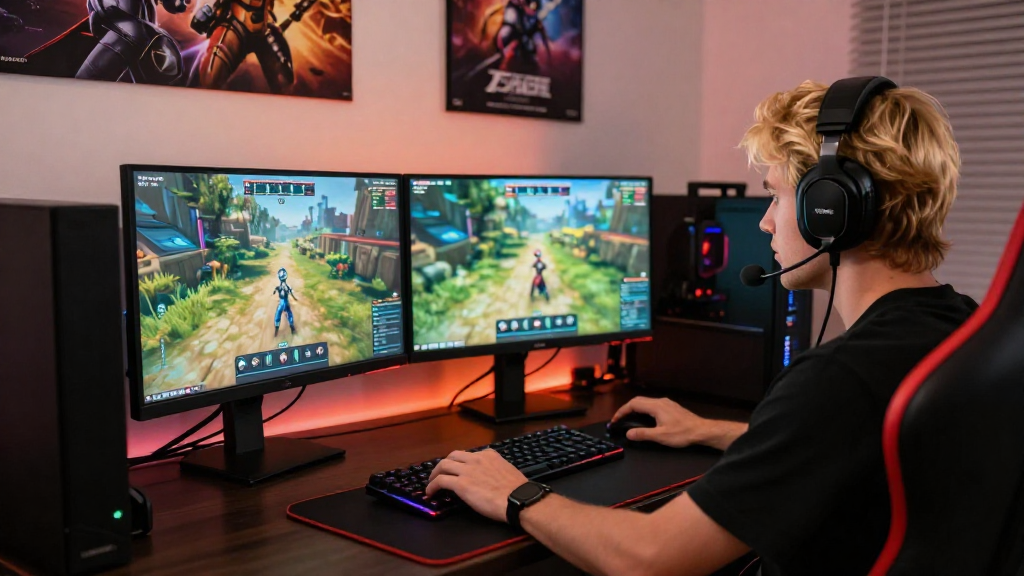
In the gaming world, knowing how to record gameplay has become essential for sharing experiences, building a community, and even creating content for platforms like YouTube and Twitch.
This guide will explore different methods, tools, and tips to help you capture your gameplay effortlessly.
What Tools Do You Need to Know How to Record Gameplay?
To embark on your journey of recording gameplay, you need to choose the right tools.
Depending on your preferred platform (PC, console, or mobile), your options may vary. Here are some popular tools:
For PC Gamers:
-
OBS Studio (Open Broadcaster Software)
– Free and open-source.
– Highly customizable with advanced features.
– Supports multiple sources and overlays. -
NVIDIA ShadowPlay
– Ideal for users with NVIDIA graphics cards.
– Minimal impact on gameplay performance.
– Easy to use and offers instant replay functionality. -
Fraps
– Simple interface and reliable performance.
– High-quality video capture.
– Suitable for older games with deep customization options.
For Console Gamers:
-
Built-in Capture Features
– PlayStation: Press the Share button to record.
– Xbox: Use the Xbox button to open the guide and select “Record That.” -
Elgato Game Capture
– For those looking for professional-quality recordings.
– Supports various resolutions and frame rates.
– Optional Live Streaming capabilities.
For Mobile Gamers:
-
Built-in Screen Recorders
– Most smartphones now come with a built-in screen recording feature.
– Easy access from the quick settings menu. -
Third-Party Apps
– AZ Screen Recorder: No time limit and offers various resolutions.
– Mobizen: Good for easy gameplay sharing with additional editing tools.
How do You Set Up Your Recording Software?
Setting up your recording software is crucial for capturing high-quality gameplay.
Here are some steps to follow, regardless of the tool you choose:
-
Download and Install the Software
– Follow instructions from the official website for OBS, NVIDIA, or any other tool. -
Configure Settings for Optimal Performance
– Video Settings: Choose the resolution (1080p is standard) and frame rate (30 or 60 FPS).
– Audio Settings: Ensure your microphone and game audio are correctly set up. -
Select the Game Window
– Choose the game you want to record as your source.
– If using OBS, you can do this via “Game Capture” mode. -
Test Recording
– Run a short test recording to check for any issues.
– Pay attention to audio levels and video quality.
Why is Recording Gameplay Important?
Understanding how to record gameplay can offer numerous benefits:
- Content Creation: Share your gaming moments on platforms like YouTube, Twitch, or TikTok.
- Learn and Improve: Review your gameplay and identify areas for improvement.
- Create Memories: Capture epic moments or achievements that you’ll want to remember.
- Community Building: Engage with your audience by sharing tutorials, game reviews, or live streams.
What Should You Consider While Recording Gameplay?
While recording gameplay is easier than ever, there are several key factors to consider:
Frame Rate and Resolution
- Higher frame rates (60 FPS) provide smoother gameplay.
- 1080p resolution is recommended for a good balance between quality and file size.
Storage Space
- High-quality recordings can take up a significant amount of storage.
- Ensure you have enough disk space to capture long sessions without interruptions.
Performance Impact
- Some recording software can affect your gaming performance.
- Opt for tools that minimize impact, such as ShadowPlay on NVIDIA GPUs.
Overlay and Editing Features
- Use overlays to enhance the viewing experience.
- Look for software that allows basic editing (cutting out unnecessary parts).
How Can You Edit Your Recorded Gameplay?
Once you’ve captured your gameplay, editing is the next step.
Here are some tools you might consider:
-
Adobe Premiere Pro
– Industry-standard editing software with advanced features.
– Useful for adding effects, transitions, and color grading. -
HitFilm Express
– A free tool catering to both beginners and experienced editors.
– Offers a range of editing tools and visual effects. -
Filmora
– Intuitive interface perfect for beginners.
– Offers a good selection of effects and transitions without overwhelming options.
Basic Editing Techniques to Consider:
- Trimming: Remove unnecessary footage from the beginning or end.
- Adding Music: Incorporate background music to enhance the experience.
- Overlays and Text: Use annotations to highlight tips or important moments.
- Transitions: Smooth the cuts between different segments for a polished look.
How Do You Share Your Gameplay Recordings?
Once your gameplay is recorded and edited, sharing it is the most satisfying part.
Here are some tips for effectively sharing your content:
Choose the Right Platform:
- YouTube: Ideal for longer content and tutorials. Optimize with tags and descriptions for better SEO.
- Twitch: Great for live streaming and building a community. Engage with your audience in real-time.
- TikTok: Perfect for short clips highlighting epic moments.
Promote Your Content:
- Use social media platforms such as Twitter, Instagram, or Facebook to share your content.
- Engage with gaming communities online to build an audience.
Use Attention-Grabbing Thumbnails and Titles:
- Create eye-catching thumbnails that represent your content well.
- Use engaging titles with keywords like “how to record gameplay” for better visibility.
Conclusion: Are You Ready to Record Your Gameplay?
Now that you understand how to record gameplay, you have the tools and knowledge to get started.
Remember:
- Choose the right software based on your platform.
- Optimize your recording settings for the best quality.
- Edit and share your content strategically.
With these tips and tools at your disposal, you’ll be able to document your gaming adventures effortlessly and share them with the world. Happy gaming and recording!
