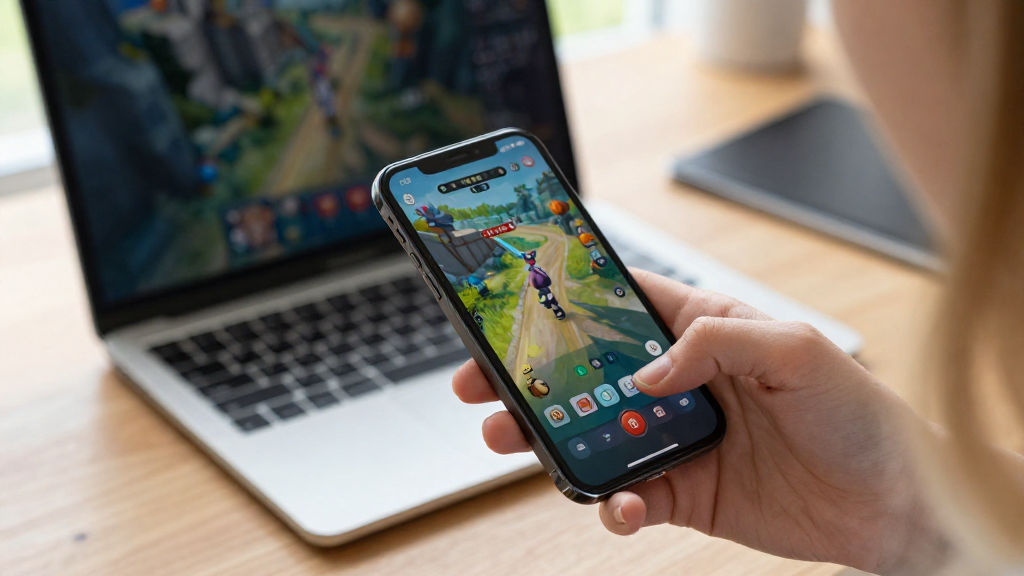
In today’s gaming world, knowing how to transfer game data across devices can greatly enhance your gaming experience.
Whether you’re switching from a smartphone to a console or upgrading your PC, keeping your saved progress can be vital. In this article, we will guide you through the essential steps to successfully and smoothly transfer your game data.
Why Do You Need to Transfer Game Data?
Transferring your game data might be necessary for several reasons:
- Device Upgrades: When you upgrade to a new console, phone, or computer, you don’t want to lose all your hard-earned progress.
- Changing Platforms: Many players switch from mobile to PC or console gaming, making data transfer crucial.
- Cloud Saves: Utilizing cloud services can help keep your data safe and accessible on different devices.
Understanding the how to transfer game data is the first step toward preserving your gaming experience.
What Methods Can Help You Transfer Game Data?
There are several methods to transfer game data across devices, including:
- Cloud Save Services
Many modern games allow you to save your data to the cloud, making it easy to access across different devices. Services like:
– Steam Cloud for PC and Mac
– PlayStation Plus for PlayStation consoles
– Xbox Live Cloud Saves for Xbox consoles
– Google Play Games for Android devices
– iCloud for iOS devices
These services automatically keep your game progress in sync across platforms.
- Manual Transfer
If the game doesn’t support cloud saving, you can manually transfer saved files. Here’s how:
– Locate the save files on your original device.
– Copy these files to an external storage medium (like a USB drive).
– Move the files to the equivalent location on your new device.
- Third-party Applications
There are applications specifically designed to help with data migration. Some popular options include:
– Game Save Manager: Useful for PC gaming.
– Cheat Engine: Can assist with transferring certain games, but should be used cautiously.
– App Cloner: Typically for mobile devices.
- In-Game Transfer Features
Some games come with built-in transfer features that facilitate the migration of progress. These often involve linking accounts or importing/exporting save files directly within the game settings.
How Do You Use Cloud Services to Transfer Game Data?
If you want to utilize cloud services, here’s a step-by-step guide:
-
Check Game Compatibility: Not every game supports cloud saving. Verify your game’s compatibility with cloud services.
-
Register or Log In: Create an account or log in to the gaming service (e.g., Steam, PlayStation Network).
-
Enable Cloud Saving: Go to the game’s settings menu and enable the cloud save option. This may be under the “data” or “options” tab.
-
Play on Both Devices: Make sure you’re signed in on both devices with the same account. Your game data should automatically sync.
-
Check Your Progress: Launch the game on your new device and check if all data is intact.
By following these steps, you’ll understand how to transfer game data effectively using cloud services.
What if You Want to Transfer Game Data Manually?
When cloud services are not an option, manual transfer becomes essential. Here’s a detailed process:
-
Locate Your Save Files:
– For PC: Most games are stored in the Documents folder or within the installation directory.
– For Consoles: Check the console’s file management features under settings.
– For Mobile: Android may require root access while iOS often uses iCloud. -
Copy Save Files:
– Use a USB drive, external HDD, or any other transfer method to copy the files from the original device to your external storage. -
Transfer the Files:
– Connect the USB drive to the new device.
– Access the destination folder for the game in the new device and paste your saved files. -
Validate Your Files:
– Launch the game on the new device and ensure that your progress is displayed.
This step-by-step manual process ensures you understand how to transfer game data even when cloud options are unavailable.
How Can Third-party Apps Assist in Game Data Transfers?
When looking for alternative solutions, third-party apps can be quite helpful:
- Backup and Restore: Some apps let you back up your saved game files and then restore them on a different device.
- Cross-Platform Transfers: Some tools specifically cater to transferring data across different gaming platforms (e.g., mobile to PC).
Always check user reviews and ensure the software is reliable before use to avoid issues with your game data.
What Should You Remember When Transferring Game Data?
When you are preparing to transfer your game data, here are some tips to consider:
- Backup Everything: Always create a backup of your data before attempting a transfer.
- Compatibility: Ensure the games and the platforms are compatible with the transfer method you choose.
- Patience is Key: Sometimes, data transfers can take longer than expected, especially for larger files.
Conclusion: Keeping Your Game Data Safe
Understanding how to transfer game data across devices is critical for maintaining continuity in your gaming experience.
Utilizing cloud services, creating manual backups, or exploring third-party solutions can help you achieve a seamless transition from one device to another.
By following the steps outlined in this article, you can ensure that when you move from one platform to another, your hard-earned progress and achievements remain intact.
So, the next time you find yourself switching devices, you’ll have all the information you need to make that transition as smooth as possible! Happy gaming!
