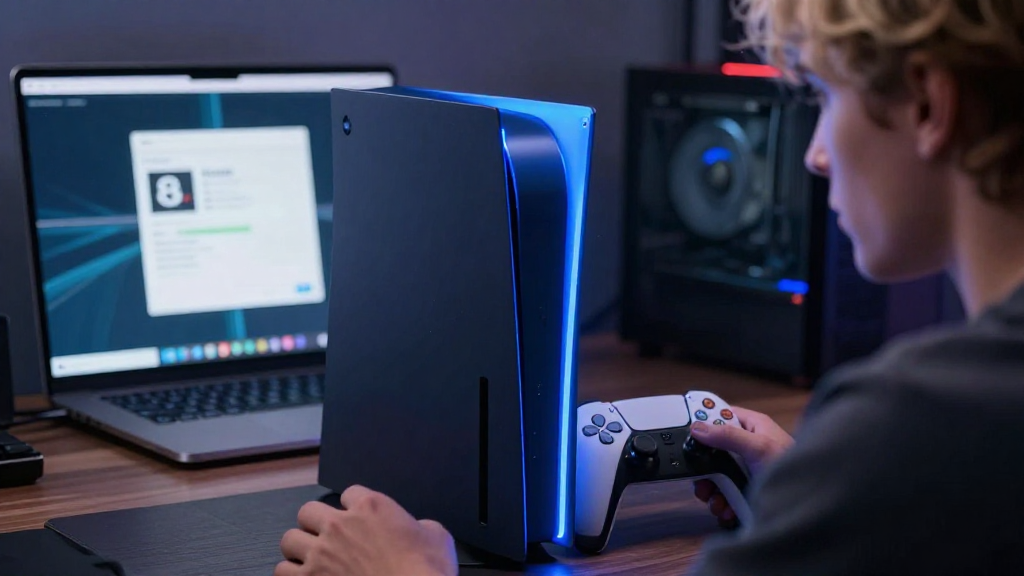
Backing up game saves is essential for any gamer who values their progress.
In this article, we’ll explore how to back up game saves automatically, ensuring you never lose your hard-earned achievements.
Why Should You Back Up Game Saves?
Backing up game saves is a crucial practice for several reasons:
- Avoid Data Loss: Games can crash or become corrupted, leading to loss of hours of progress.
- Protect Against Hardware Failure: Hard drives can fail unexpectedly. Backing up saves protects your data.
- Cloud Saves for Easy Access: Services like Steam and PlayStation make it easy to access saved data across devices.
- Enhancing Gameplay Experience: With backups, you can experiment with different gameplay styles knowing your original saves are secure.
What Are the Best Methods to Back Up Game Saves?
When considering how to back up game saves, several methods can help you achieve reliable backups:
-
Cloud Storage Solutions
– Most modern gaming platforms, like Xbox and PlayStation, offer integrated cloud storage.
– Services like Steam automatically back up game saves in the cloud for you.
– Platforms such as Google Drive or Dropbox can also be used for manual backups. -
External Hard Drives and USB Flash Drives
– Physically copying game save files is another secure method.
– Use an external hard drive or USB flash drive to store your game saves.
– Regular old-fashioned backups ensure you have local copies of your data. -
Game-Specific Backup Tools
– Many games have built-in options to back up saves.
– Titles like The Sims and Civilization have their own save management systems.
– Research and utilize any available options for the games you frequently play.
How to Back Up Game Saves on Different Platforms
If you’re unsure how to back up game saves on your specific gaming platform, here’s a breakdown:
On PC
Windows Users:
-
Use Built-in Features
– Utilize the Windows backup feature to automatically back up your documents, including game saves. -
Steam Cloud Saves
– Most games on Steam will automatically back up your saves in the cloud.
– Check game properties to ensure Cloud Save is enabled under “General.” -
Manual Backups
– Navigate to the Documents folder, typically underC:\Users\[YourUsername]\Documents\My Games\[GameName].
– Copy the entire folder to your external drive or cloud storage service.
On Consoles
PlayStation 4/5:
-
Cloud Saves
– If you have a PlayStation Plus subscription, cloud saves are automatically available.
– Manage your save data through Settings > Application Saved Data Management. -
Manual Backups
– Connect a USB drive to your PS4/PS5.
– Go to Settings > Application Saved Data Management > Saved Data in System Storage, then copy to USB.
Xbox One/Xbox Series X/S:
-
Auto-Save
– Xbox consoles automatically back up your saves to the cloud if you are connected to Live.
– Ensure “Cloud Save” is active in your Xbox settings. -
Backup Saves Manually
– Use the external USB drive to save data.
– Go to My Games & Apps > Highlight the game > Manage Game > Saved Data.
What Are Some Common Errors When Backing Up Game Saves?
Knowing how to back up game saves can help you avoid pitfalls. Here are some common mistakes to watch out for:
- Neglecting Manual Backups: Even if a platform offers cloud saves, manually backing up saves is crucial.
- Ignoring Updates to Backup Software: Keep backup software updated to avoid compatibility issues.
- Not Testing Your Backups: Periodically restore backups to ensure they work correctly and are not corrupted.
- Overwriting Old Saves: Be careful about overwriting existing backups. Create multiple versions if necessary.
How to Automate Backing Up Game Saves?
To make backing up game saves a no-brainer, consider automating the process using the following methods:
-
Scheduled Backups on PC
– Use backup software like Acronis True Image or Macrium Reflect.
– Set scheduled tasks to back up your game save folders regularly. -
Cloud Sync Services
– Utilize services like Google Drive or Dropbox that automatically sync folders.
– This method ensures your game saves are always up-to-date. -
Console Backup Settings
– For consoles, explore any available settings that allow you to automate cloud backups.
– Most modern systems manage this process seamlessly when connected to the internet.
What to Do If You Lose Your Game Saves?
If you find yourself in a situation where you’ve lost your game saves, don’t panic. Here’s what you can do:
- Check Cloud Services: See if your saves are available through cloud storage.
- Use Recovery Software: Tools like Recuva can help recover deleted files if local backups were not made.
- Contact Support: Many gaming platforms have support teams that might help recover lost progress.
Conclusion: Take Control of Your Game Saves
Knowing how to back up game saves is essential for every gamer.
With varying methods available, you can safeguard your progress against data loss and enjoy peace of mind.
Choose the best backup method that fits your gaming habits, whether it’s through cloud storage, external hard drives, or automated processes.
Regularly checking and testing your backups will ensure you are prepared for any unexpected losses.
Taking these simple steps today can save you hours of frustration tomorrow. Secure your game saves, and keep your gaming journey uninterrupted!
