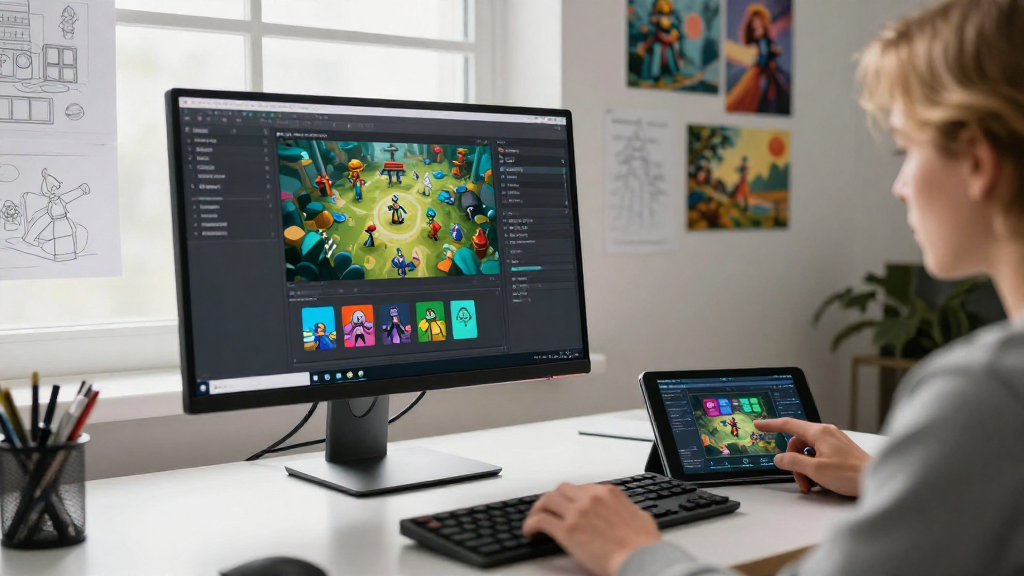
If you’re eager to learn how to make games in Unity, you’re in the right place.
Unity is a powerful and versatile game development platform used by both novice and professional developers to create games for various platforms. In this article, we’ll guide you step-by-step on how to make games in Unity, from understanding the basics to publishing your own game!
What is Unity?
Unity is a cross-platform game engine developed by Unity Technologies. Its intuitive interface and robust library of assets make it an ideal platform for game development. Whether you’re designing 2D games or 3D experiences, Unity provides the tools and resources needed to create impressive games.
Why Choose Unity for Game Development?
When considering how to make games in Unity, it’s important to know why Unity is a popular choice among developers:
- Cross-Platform Capabilities: Create games for PC, consoles, mobile devices, and web browsers with ease.
- User-Friendly Interface: Ideal for beginners, Unity’s drag-and-drop interface simplifies the game development process.
- Extensive Asset Store: Access a wealth of resources, including free and paid assets to enhance your game.
- Active Community & Support: Join a large community of developers, access tutorials, forums, and get answers to your questions.
How Do You Get Started with Unity?
Before diving into how to make games in Unity, you need to set up your development environment. Here’s how:
-
Download and Install Unity:
– Visit the official Unity website.
– Download the Unity Hub for easy management of projects and installations.
– Install the latest version of Unity along with any necessary modules for target platforms. -
Create a New Project:
– Open Unity Hub and click on “New Project.”
– Choose a template (2D or 3D), give your project a name, and set the location to save it.
– Click on “Create” to launch the Unity Editor.
What Are the Basic Concepts in Unity?
Understanding the key components of Unity is essential for learning how to make games in Unity effectively:
- Scenes:
- A scene is a single game level or environment.
-
Scenes can be loaded, saved, and can include unique elements like characters and environments.
-
GameObjects:
- These are the fundamental objects in Unity.
-
All entities in your game, such as characters, props, and cameras, are GameObjects.
-
Components:
- Components allow GameObjects to have functionality.
-
Examples include Rigidbody (for physics), Renderer (for visuals), and Collider (for interactions).
-
Scripts:
- Write scripts in C# to define the behavior of your GameObjects.
- Scripts control how elements of your game interact and respond to players.
How Do You Create Your First Game in Unity?
Now that you’re familiar with Unity’s interface and components, let’s explore the process of creating your first game. Here’s a simple step-by-step guide to developing a basic game.
Step 1: Create a New Scene
- Open Your Project: Launch the Unity project you created.
- Add a Scene: Go to the “File” menu and select “New Scene.”
- Save Your Scene: Save it in the “Scenes” folder in your project.
Step 2: Set Up Your Game Environment
- Add GameObjects:
– Populate your scene with GameObjects like platforms, characters, and obstacles. - Use the Asset Store:
– Browse the Asset Store for free resources that enhance your game’s aesthetics.
Step 3: Create Player Controls
- Add a Player GameObject:
– Right-click in the Hierarchy window, select “3D Object,” and then “Cube” for a simple player object. - Write a Player Movement Script:
– In the Project window, create a new C# script named “PlayerController.”
– Add code for basic movement. Here’s an example:
    void Update()
    {
        float moveHorizontal = Input.GetAxis("Horizontal");
        float moveVertical = Input.GetAxis("Vertical");
        Vector3 movement = new Vector3(moveHorizontal, 0.0f, moveVertical);
        transform.Translate(movement * speed * Time.deltaTime);
    }
Step 4: Add Physics
- Add a Rigidbody Component:
– Select your player cube, go to the Inspector window, and click “Add Component.”
– Search for “Rigidbody” and add it to enable physics interactions.
Step 5: Implement Game Logic
- Create Game Mechanics:
– Integrate scorekeeping, timers, and other game dynamics that engage players. - Write Scripts for Game Logic:
– Define how the game reacts to player actions and game events.
Step 6: Test Your Game
- Enter Play Mode:
– Click the Play button at the top of the Unity Editor to run your game. - Debug and Optimize:
– Identify and fix any bugs or performance issues as you test your game.
How Do You Polish and Finalize Your Game?
Once you’ve built a basic version of your game, it’s time to polish and prepare for release.
Step 1: Add Visual and Audio Elements
- Enhance Graphics:
– Use shaders, particle systems, and lighting to enrich your visuals. - Sound Design:
– Add background music and sound effects to make your game immersive.
Step 2: Optimize Performance
- Check Frame Rate:
– Ensure your game runs smoothly, aiming for at least 30 frames per second. - Optimize Assets:
– Compress textures and use efficient script execution to reduce lag.
Step 3: Build Your Game
- Go to Build Settings:
– Select “File” > “Build Settings” to configure your target platform. -
Choose Platform:
– Select where you want to deploy your game (e.g., Windows, WebGL). -
Build and Test:
– Click “Build” to compile your game and run tests to ensure everything works.
How Do You Publish Your Game?
Once your game is ready, it’s time for publishing. Follow these steps:
-
Select a Distribution Platform:
– Consider platforms like Steam, itch.io, or the App Store for mobile games. -
Create a Marketing Plan:
– Promote your game through social media, gaming forums, and videos. -
Gather Feedback:
– Encourage players to provide reviews and feedback to improve future updates.
Conclusion
Learning how to make games in Unity is a rewarding journey that combines creativity with technical skills.
With patience, practice, and the right resources, you can create engaging and polished games.
Whether you’re designing simple projects or complex experiences, Unity provides the framework you need to turn your ideas into reality.
Start your game development journey today and join the thriving community of Unity developers!
