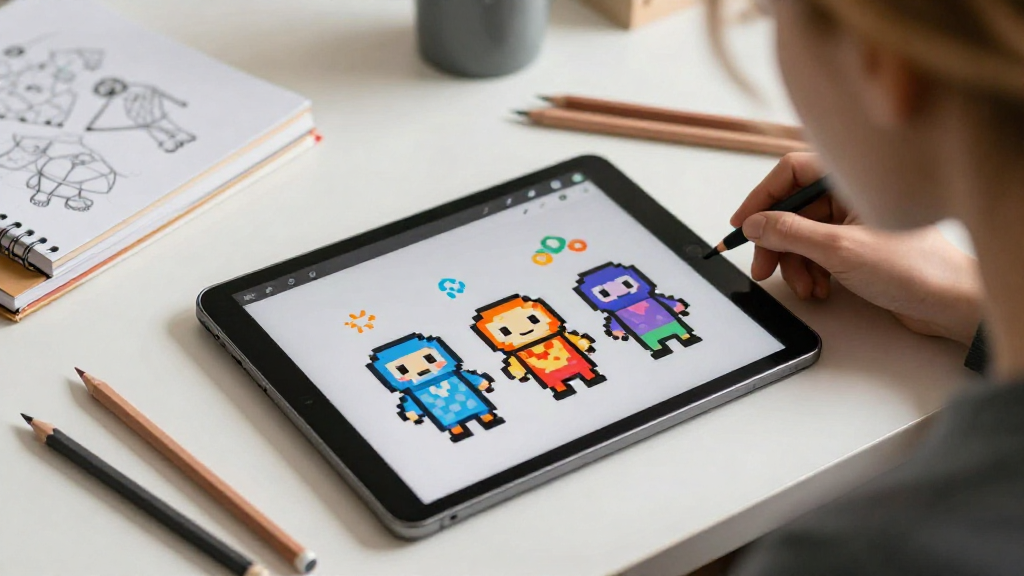
Creating captivating pixel art can elevate your gaming project to new heights.
In this article, we will cover how to make pixel art for games, providing you with essential techniques, tools, and tips to get started on your pixel art journey.
What Is Pixel Art?
Pixel art is a form of digital art where images are created by arranging individual pixels, often giving them a retro or nostalgic feel.
It’s a style that has been influential in the development of countless video games, particularly those from the late 20th century.
The appeal of pixel art lies in its simplicity and the ability to convey complex ideas and emotions through minimalistic representation.
Why Use Pixel Art in Games?
Pixel art is an effective choice for various reasons:
-
Nostalgia: Many gamers have fond memories of classic games featuring pixel art designs.
-
Simplicity: With fewer details, pixel art allows for easier editing and faster production times.
-
Stylistic Choice: It provides a unique aesthetic that can set your game apart in a crowded market.
-
Lower Resource Requirements: Pixel art typically requires less computational power, which is great for mobile games and indie titles.
What Tools Do You Need to Make Pixel Art for Games?
To create pixel art, you’ll need the right tools. Here are some popular options:
-
GraphicsGale: A user-friendly tool with frame-by-frame animation capabilities.
-
Aseprite: A powerful pixel art tool catering specifically to game developers.
-
Piskel: A free online editor that’s perfect for beginners.
-
GIMP: A versatile image editor that can also be tailored for pixel art creation.
Choose the tool that best suits your needs and budget.
How to Start Creating Pixel Art for Games?
Getting started with how to make pixel art for games involves a series of steps:
Step 1: Choose Your Concept
Begin by brainstorming the characters, items, or environments you want to create.
Sketching your ideas on paper can help solidify your thoughts before translating them into digital format.
Step 2: Set Your Canvas Size
For pixel art, typical canvas sizes range from 16×16 to 64×64 pixels.
Pick a size that works for your project. Smaller sizes create a retro look, while larger sizes allow for more detail.
Step 3: Select a Color Palette
A well-chosen color palette can set the mood for your art.
Here are some tips for selecting colors:
-
Limit Your Colors: Stick to a small palette (5-16 colors) to keep designs cohesive.
-
Use Contrast: Choose colors that contrast well to make elements stand out.
-
Inspire from Others: Look at existing pixel art for inspiration.
Step 4: Start Drafting
Using your chosen tool, start drawing your pixel art piece.
Here’s how to achieve the best results:
-
Outline First: Begin with a rough outline of your subject.
-
Fill in the Base Colors: Once the outline is complete, fill in the main colors.
-
Add Shading: Add depth by incorporating shading and highlights.
Step 5: Animate If Necessary
Animation can make your pixel art come alive!
Creating animations involves multiple frames that change slightly from one to the next.
Here’s how to animate your pixel art:
-
Plan Your Animation: Decide what movements you want to depict (e.g., walking, jumping).
-
Create Keyframes: Draw the important frames first, then fill in the in-between frames.
-
Test Your Animation: Use your software’s preview feature to see how your animation looks.
How Can You Improve Your Pixel Art Skills?
Improving your skills in how to make pixel art for games requires practice and learning. Here are some helpful tips:
1. Practice Regularly
The more you draw, the better you’ll become.
Set aside dedicated time each day or week for practice.
2. Study Other Artists
Analyze the work of established pixel artists.
Look at their use of colors, shading techniques, and composition.
3. Join Online Communities
Engage with other pixel artists through forums, Discord servers, or social media groups.
Sharing your work can provide valuable feedback and new ideas.
4. Use Tutorials and Resources
Take advantage of free and paid tutorials available on platforms like YouTube, Skillshare, or Udemy.
These resources can provide structured learning and advanced techniques.
What Are Common Mistakes in Pixel Art?
Avoiding common pitfalls can help you create better pixel art. Here are a few mistakes to be aware of:
-
Overcomplicating Designs: Keep it simple; pixel art thrives on minimalism.
-
Ignoring Composition: Consider the arrangement of elements in your artwork.
-
Poor Color Choices: Balance your palette and ensure your colors work well together.
-
Neglecting Grid Alignment: Make sure your pixels are aligned neatly for a polished finish.
How to Implement Pixel Art in Your Game?
Once you’ve created your pixel art, implementing it into your game is the next step.
Follow these guidelines:
1. Choose Your Game Engine
Popular engines like Unity, Godot, or GameMaker offer excellent support for pixel art.
Select one that fits your project goals.
2. Export Your Art
Most pixel art tools allow you to export your designs in formats like PNG or GIF.
Choose a transparent background for characters and objects.
3. Integrate Into Your Game
Depending on your game engine, import your pixel art assets and set up your game’s sprite sheets and animations.
4. Test and Iterate
Playtest your game to see how the pixel art fits within the gameplay.
Make adjustments as necessary to ensure a seamless experience.
Conclusion: Mastering How to Make Pixel Art for Games
Understanding how to make pixel art for games opens up a world of creative possibilities.
With practice and the right tools, you can bring your imaginative characters, worlds, and animations to life.
Embrace the style, learn from others, and continuously refine your skills to create stunning artwork for your games.
Your pixel art journey starts now—dive in and let your creativity shine!
