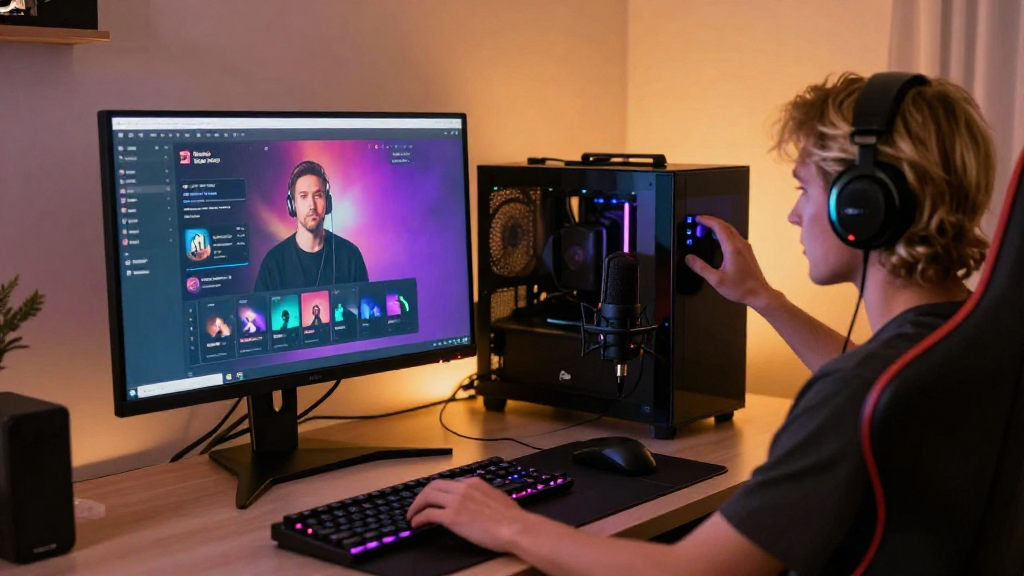
Are you eager to learn how to set up a Twitch stream? You’ve come to the right place!
In this article, we’ll walk through the essential steps required to launch your very own Twitch streaming channel. From account creation to configuring your streaming software, we’ve got you covered with detailed instructions to help you get started.
What Do You Need to Get Started with Twitch Streaming?
Before diving into how to set up a Twitch stream, let’s discuss the essential equipment and software you’ll need:
-
Computer: A decent computer or gaming console (like a PlayStation or Xbox) is crucial for streaming.
-
Internet Connection: A high-speed internet connection is important. Aim for upload speeds of at least 3 Mbps for a stable stream.
-
Webcam and Microphone: Good quality video and audio can significantly enhance viewer engagement. Consider investing in a USB microphone and a webcam for improved quality.
-
Streaming Software: Popular options include:
– OBS Studio (Open Broadcaster Software)
– Streamlabs OBS
– XSplit
– Twitch Studio -
Twitch Account: You’ll need to create an account on Twitch if you haven’t done so already. Signing up is free and straightforward.
How Do You Create a Twitch Account?
To learn how to set up a Twitch stream, the first step is to create a Twitch account. Here’s how you can easily set one up:
-
Visit the Twitch website: Go to Twitch.tv.
-
Click on ‘Sign Up’: Found in the upper right corner of the homepage.
-
Fill in your details: Provide your email address, username, and password.
-
Verify your Account: You will receive an email to confirm your account. Click the link in that email to activate your account.
-
Customize your Profile: After signing in, customize your profile by adding a profile picture, bio, and link to your social media accounts.
Now that you have your Twitch account, let’s move on to the next crucial step in how to set up a Twitch stream.
How Do You Configure Your Streaming Software?
Selecting the right software is vital for your streaming success. Let’s take a look at how to configure popular streaming software, specifically OBS Studio as it’s widely used and completely free.
Setting Up OBS Studio
-
Download and Install OBS:
– Go to the OBS website and download the appropriate version for your operating system. -
Initial Setup:
– When you first open OBS, you’ll see the Auto Configuration Wizard.
– Follow the prompts for basic settings. Choose “Optimize for Streaming” and select your desired resolution (1080p is recommended for most streamers). -
Connect to Twitch:
– Go to Settings in OBS and click on the Stream tab.
– Set the service to Twitch and enter your Stream Key. You can find this in your Twitch dashboard under Settings > Stream. -
Creating a Scene:
– A scene is essentially a layout for your stream.
– Click on the ‘+’ button in the “Scenes” box to create a new scene.
– Add sources to your scene (e.g., your webcam, game capture, or window capture) by clicking the ‘+’ button in the “Sources” box. -
Test Your Stream:
– Before going live, it’s crucial to test everything.
– You can record a short video to ensure that video and audio quality match your expectations.
What Should You Consider Before Going Live?
Now that you know how to set up a Twitch stream, it’s important to consider a few additional elements before hitting the broadcast button:
-
Stream Titles and Categories: Make sure to set a title and category that accurately represent what viewers can expect.
-
Chat Moderation: Establish rules for your chat and decide whether you need moderators to help manage it.
-
Engaging Content: Consider the types of games or activities you’ll be streaming. Try to focus on games that you are passionate about and can engage with your audience.
-
Streaming Schedule: Consistency is key. Announce a streaming schedule to build a loyal viewer base.
How Do You Go Live on Twitch?
Now that you’ve prepared everything, here’s how to set up a Twitch stream and go live:
-
Open OBS Studio: Ensure that all your sources are visible.
-
Start Streaming: Click the “Start Streaming” button on the right side of OBS.
-
Check Your Twitch Dashboard:
– Head over to your Twitch dashboard to view your stream and monitor chat. -
Interact with Your Viewers:
– Engage with your audience as they join your stream. Encourage them to ask questions and participate. -
End the Stream: When you’re done, simply click “Stop Streaming” in OBS.
How Do You Promote Your Twitch Stream?
To build your audience after you’ve learned how to set up a Twitch stream, you must promote your content effectively:
-
Social Media: Share your stream on platforms like Twitter, Instagram, and Facebook.
-
Engage in Communities: Participate in gaming communities on Reddit or Discord to help spread the word about your stream.
-
Collaborate with Other Streamers: Partnering with other streamers can expose your channel to new audiences.
-
Use Hashtags: When promoting your streams online, use relevant hashtags to increase visibility.
What Equipment Can Enhance Your Twitch Experience?
To take your Twitch streaming to the next level, consider investing in additional gear:
-
Green Screen: This can enhance your video quality by allowing you to isolate your image and place it against different backgrounds.
-
Capture Card: If you’re streaming console games, a capture card (like Elgato HD60S) can improve your streaming setup.
-
Lighting: Proper lighting can greatly enhance your video quality. Softbox lights or ring lights can make a noticeable difference.
-
Stream Deck: A device like the Elgato Stream Deck can help manage your stream with custom buttons for various actions.
Conclusion: Time to Start Streaming!
By now, you should have a solid understanding of how to set up a Twitch stream. Remember, the key to success is consistency and engagement.
Dive into your content creation with passion, interact with your viewers, and before you know it, you’ll have built a community around your interests. Happy streaming!
