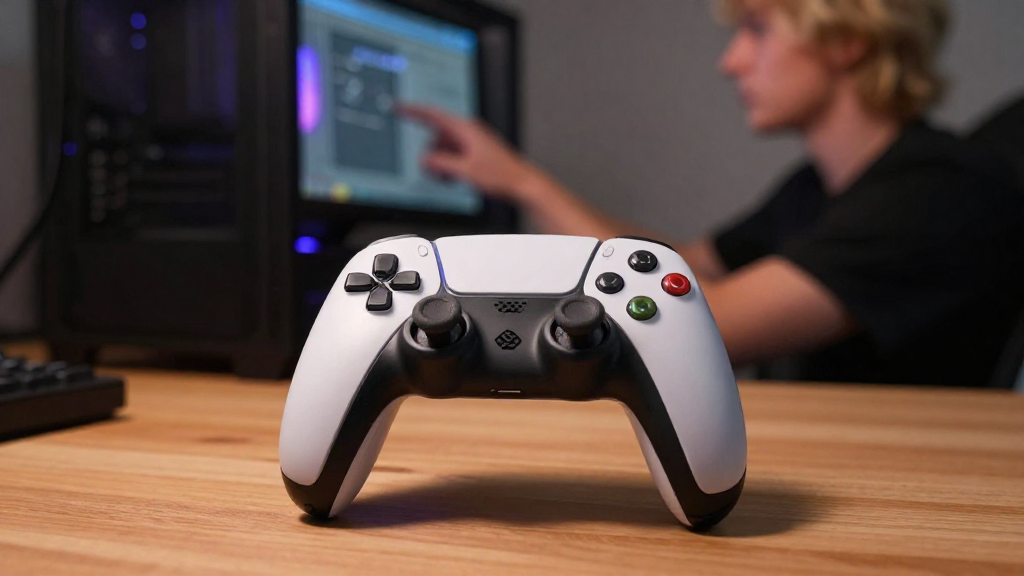
If you’re wondering how to use a game controller on PC, you’re in the right place.
Using a game controller on your PC can enhance your gaming experience, providing better control and comfort for various game genres.
In this guide, we’ll cover everything you need to know about setting up and using game controllers on your PC.
What Types of Game Controllers Can You Use on PC?
When it comes to choosing a controller for your PC, various options are available. Here are some popular types:
-
Xbox Controllers:
– Xbox One and Xbox Series X|S controllers are widely supported.
– They connect via Bluetooth or USB. -
PlayStation Controllers:
– PS4 DualShock 4 and PS5 DualSense controllers can be used.
– Typically connected via Bluetooth or USB. -
Third-Party Controllers:
– Brands like Logitech, Razer, and Hori offer game controllers compatible with PCs.
– Ensure compatibility with Windows. -
Retro Controllers:
– Some classic console controllers can also work with emulators on PC.
Make sure your chosen controller is compatible with your PC for the best experience in learning how to use a game controller on PC.
How Do You Connect a Game Controller to Your PC?
Once you’ve chosen a game controller, connecting it to your PC is your next step. There are generally two main connection methods: wired and wireless.
Wired Connection
- USB Cable:
– Connect the controller directly to your PC using a USB cable.
– Most controllers will be plug-and-play, meaning they will automatically be recognized by the operating system.
Wireless Connection
-
Using Bluetooth:
– Ensure your PC has Bluetooth capabilities.
– Turn on your controller.
– Put it in pairing mode (usually by holding the pairing button).
– Go to Settings > Devices > Bluetooth & other devices.
– Click Add Bluetooth or other device, select Bluetooth, and choose your game controller from the list. -
Using a Wireless Adapter (for Xbox controllers):
– Plug the adapter into a USB port on your PC.
– Press the pairing button on the adapter.
– Hold the pairing button on the controller until it connects.
How Do You Configure Your Game Controller on Windows?
After connecting your game controller, you’ll want to make sure it’s configured correctly for optimal performance. Here’s how to configure it:
-
Test the Controller:
– Go to Control Panel > Devices and Printers.
– Find your controller and right-click on it.
– Select Game Controller Settings and then Properties to test buttons and axes. -
Calibrate the Controller:
– In the same Game Controller Settings window, click on Properties.
– Under the Settings tab, select Calibrate.
– Follow the on-screen instructions to calibrate your controller. -
Check for Drivers:
– Windows usually installs drivers automatically.
– If issues arise, visit the manufacturer’s website to download the latest drivers.
How to Customize Game Controls?
One of the best features of using a game controller on PC is the ability to customize controls for different games. Here’s how to do that:
In-Game Settings
-
Access the Game’s Options Menu:
– Most games allow you to customize controls in their settings.
– Look for sections labeled Controls or Key Bindings. -
Remap Buttons:
– Assign particular actions to different buttons to suit your playstyle.
– Adjust sensitivity settings if your game allows for it.
Using Software
-
Steam (using Steam Big Picture Mode):
– Open Steam and click on the Big Picture Mode icon.
– Go to Library > select your game.
– Click on Manage Game > Controller Configuration.
– Customize your controller settings from here. -
Third-Party Applications:
– Software like Xpadder, Joy2Key, or DS4Windows can remap controller inputs.
– Download and configure based on your preferences.
Which Games Support Game Controllers on PC?
Many PC games support controllers, enhancing gameplay and making them more enjoyable. Here are some popular genres and titles to consider:
-
Racing Games:
– Forza Horizon series, Dirt series. -
Fighting Games:
– Mortal Kombat, Street Fighter, Tekken series. -
Action/Adventure Games:
– Grand Theft Auto V, Dark Souls series, The Witcher 3: Wild Hunt. -
Platformers:
– Ori and the Will of the Wisps, Hollow Knight. -
Simulation Games:
– Stardew Valley, Cities: Skylines.
Always check your game’s official documentation to ensure compatibility if you’re unsure.
What Troubleshooting Steps Can You Take?
Sometimes, you might experience issues while learning how to use a game controller on PC. Here are some common problems and their solutions:
-
Controller Not Recognized:
– Check connections, ensure cables are secure, and verify Bluetooth settings.
– Try restarting your PC. -
Lag or Delay:
– Ensure that your controller batteries are full (for wireless).
– Consider using a wired connection for less latency. -
Buttons Not Responding:
– Run the controller diagnostics in Windows Control Panel.
– Update your driver software. -
Inconsistent Performance:
– Calibrate your controller again.
– Check for software conflicts with other applications.
Conclusion
Learning how to use a game controller on PC can transform your gaming experience.
Whether you’re enjoying a thrilling racing game or an immersive RPG, a game controller provides comfort and control that can enhance your performance.
From connecting your controller, customizing settings, to troubleshooting common issues, you can easily set up your game controller to suit your needs.
With this comprehensive guide, you’re now well-equipped to maximize your gaming sessions on PC.
Whether you’re looking to casually play or dive into competitive gaming, utilizing a game controller can certainly elevate your overall experience. Happy gaming!
